Same CLI, every shell: TimeWarp Nuru tab completion in bash, zsh, fish and PowerShell
Same CLI, every shell: TimeWarp Nuru tab completion in bash, zsh, fish and PowerShell
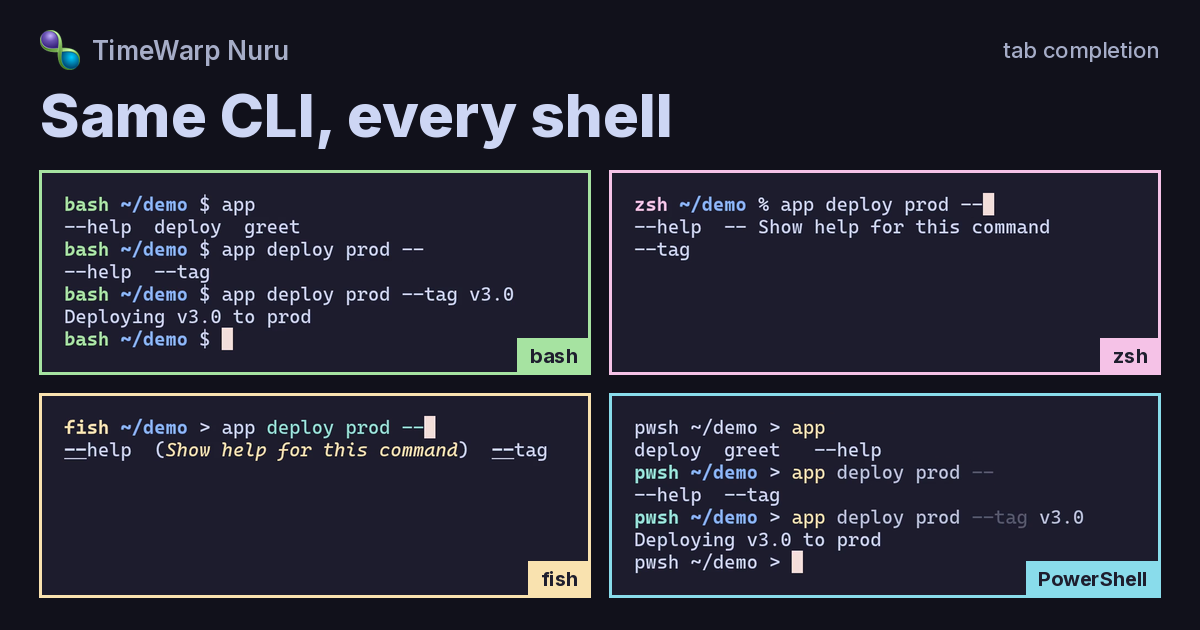
The video above is one small TimeWarp Nuru app getting tab completion in four shells. There are two routes and one call to EnableCompletion(). I did not write a completion script for any of the shells. Each one asks the app what comes next, and the app answers from its routes.
This post has every command I used, so you can reproduce it yourself. Copy the blocks in order.
What I used
- Debian GNU/Linux 13 (trixie), 13.7, x86_64
- .NET SDK 10.0.402
- TimeWarp.Nuru 3.0.0
- bash 5.2.37 with bash-completion 2.16.0
- zsh 5.9
- fish 4.0.2
- PowerShell 7.6.6
Newer versions are fine. It also works on Ubuntu 26.04 with bash 5.3.9 and fish 4.2.1. The commands below are for Debian and Ubuntu. Other distros should work with their own package names.
Prerequisites
System packages
The shells, bash-completion, and the native AOT toolchain (clang and zlib1g-dev) all come from the Debian archive. curl, ca-certificates and ICU are there for the .NET install script and the SDK. The ICU package name carries a version that changes with each release (libicu76 on Debian 13, libicu78 on Ubuntu 26.04), so the command below looks up whichever one your distro ships.
sudo apt-get update
ICU_PKG=$(apt-cache search --names-only '^libicu[0-9]+$' | sort -V | tail -1 | cut -d' ' -f1)
echo "Using $ICU_PKG"
sudo apt-get install -y curl ca-certificates "$ICU_PKG" \
  bash-completion zsh fish \
  clang zlib1g-dev
.NET SDK 10.0.402
I use the official install script so the SDK version is exact and everything lands under your home directory.
curl -sSL https://dot.net/v1/dotnet-install.sh -o dotnet-install.sh
bash dotnet-install.sh --version 10.0.402 --install-dir "$HOME/.dotnet"
Put the SDK, .NET global tools and ~/.local/bin on your PATH. Add these lines to ~/.bashrc and run them in your current shell too:
export DOTNET_ROOT="$HOME/.dotnet"
export PATH="$HOME/.dotnet:$HOME/.dotnet/tools:$HOME/.local/bin:$PATH"
dotnet --version
That should print 10.0.402.
PowerShell 7.6.6
PowerShell installs as a .NET global tool, which keeps it next to the SDK you just installed.
dotnet tool install --global PowerShell --version 7.6.6
pwsh --version
In this post I start zsh, fish and pwsh from bash, so they inherit the PATH and DOTNET_ROOT above. If you want to open them straight from a terminal profile, add the same two variables to each shell's own config.
The app
Make a clean directory and save this as app.cs:
mkdir -p ~/nuru-shells && cd ~/nuru-shells
#!/usr/bin/env -S dotnet --
#:package TimeWarp.Nuru@3.0.0
using TimeWarp.Nuru;

NuruApp app = NuruApp.CreateBuilder()
  .Map("greet {name}").WithHandler((string name) => $"Hello, {name}!").AsQuery().Done()
  .Map("deploy {env} --tag? {tag?}")
    .WithHandler((string env, string? tag) => $"Deploying {tag ?? "latest"} to {env}")
    .AsCommand().Done()
  .EnableCompletion()
  .AddRepl()
  .Build();

return await app.RunAsync(args);
The first line is a shebang, the same one the TimeWarp Nuru samples use. It lets Linux run the file directly, with dotnet doing the work behind it. The #:package line pins TimeWarp.Nuru to 3.0.0. EnableCompletion() is the only completion code in the app. It adds the __complete route that the shells call, plus --generate-completion and --install-completion.
Run it
Make the file executable once:
chmod +x app.cs
Then call it like any other command:
./app.cs greet Steven
./app.cs deploy prod --tag v3.0
Hello, Steven!
Deploying v3.0 to prod
On Windows there is no shebang, so run it with dotnet run app.cs -- greet Steven instead.
The first run restores packages. On a fresh machine that took several minutes for me. After that, runs take a few seconds. You may also see a warning that says Failed to retrieve git metadata. It comes from a build task that looks for a git repository, and it is harmless here. Run git init in the directory if you want it gone.
Build it
dotnet build app.cs
Publish it as a native AOT binary
File-based apps publish with native AOT by default, so there are no extra flags:
dotnet publish app.cs -o out
./out/app greet Steven
out/app is a single native executable of about 6 MB. out/app.dbg holds the debug symbols, and you do not need to ship it.
Shell completion runs the app on every Tab press, so it should be a command on your PATH, and it should start fast. Native AOT handles the second part. Copy the binary into ~/.local/bin:
mkdir -p ~/.local/bin
cp out/app ~/.local/bin/app
app --help
See what the shells see
Before touching any shell, you can ask the app for completions the same way the shells do. The first number is the index of the word being completed.
app __complete 1 app ""
app __complete 1 app de
app __complete 3 app deploy prod --
deploy
greet
--help	Show help for this command
:4
deploy
:4
--help	Show help for this command
--tag
:4
Each line is a candidate, with an optional description after a tab. The :4 line is a directive that tells the shell not to fall back to file names. The app also writes Completion ended with directive: NoFileComp to stderr, and the completion scripts throw that away.
That output is the whole trick. The four completion scripts below are thin wrappers that call app __complete and hand the answer to the shell.
bash
Install:
app --install-completion bash
This writes ~/.local/share/bash-completion/completions/app. bash-completion loads files from that directory the first time you press Tab on app, so nothing is added to your ~/.bashrc.
bash-completion itself does need to be loaded. Debian's default ~/.bashrc already does that. If yours does not, add this line to ~/.bashrc:
[ -f /usr/share/bash-completion/bash_completion ] && . /usr/share/bash-completion/bash_completion
Load it:
exec bash
Try it:
app <Tab><Tab>                 lists: --help  deploy  greet
app de<Tab>                    completes to: app deploy
app deploy prod --<Tab><Tab>   lists: --help  --tag
app deploy prod --t<Tab>       completes to: app deploy prod --tag
bash needs two Tab presses to show a list. The first one only beeps when there is more than one match.
zsh
Install:
app --install-completion zsh
This writes ~/.local/share/zsh/site-functions/_app and adds a block to ~/.zshrc between # BEGIN nuru-completion and # END nuru-completion. The block puts that directory on fpath and runs compinit. Running the install again does not add a second block.
Load it:
zsh
If you are already in zsh, run source ~/.zshrc instead.
Try it:
app <Tab><Tab>                 lists: --help (Show help for this command), deploy, greet
app de<Tab>                    completes to: app deploy
app deploy prod --<Tab>        lists: --help, --tag
app deploy prod --t<Tab>       completes to: app deploy prod --tag
The first Tab in a new zsh session does nothing. zsh loads the completion function on that press but does not run it yet, so press Tab again. After that, one Tab shows the list everywhere, including right after app . This is a bug in the zsh script that TimeWarp Nuru 3.0.0 generates, and the fix is to call _app at the end of the script when zsh autoloads it. It is tracked as task 509.
zsh also prints the description next to --help.
fish
Install:
app --install-completion fish
This writes ~/.config/fish/completions/app.fish. fish loads completions from that directory on its own, so there is no config file to edit.
Load it:
fish
Try it:
app <Tab>                      lists: deploy  greet  --help (Show help for this command)
app de<Tab>                    completes to: app deploy
app deploy prod --<Tab>        lists: --help (Show help for this command)  --tag
app deploy prod --t<Tab>       completes to: app deploy prod --tag
fish shows the list on the first Tab, with descriptions in parentheses. A second Tab moves into the list so you can pick an item. In this app only --help has a description, because the two routes do not set one.
PowerShell
Install:
app --install-completion pwsh
This writes ~/.local/share/nuru/completions/app.ps1 and adds a loader block to your PowerShell profile, ~/.config/powershell/Microsoft.PowerShell_profile.ps1. The loader dot-sources every .ps1 file in that completions directory.
Load it:
pwsh
If you are already in pwsh, run . $PROFILE instead.
Try it:
app <Tab>                      lists: deploy  greet  --help
app de<Tab>                    completes to: app deploy
app deploy prod --<Tab><Tab>   lists: --help  --tag
app deploy prod --t<Tab>       completes to: app deploy prod --tag
Three things are different in PowerShell:
- After
appthe list shows on the first Tab. On--it takes two. - PowerShell does not add a space after a completion. Type the space yourself before the next word, for example
app deploythen space thenprod. - The PowerShell script has the full path to the
appbinary written into it when you install it. If you move the binary, runapp --install-completion pwshagain. The bash, zsh and fish scripts callappby name and find it on yourPATH.
You can also check it without pressing Tab at all:
TabExpansion2 -inputScript 'app deploy prod --' -cursorColumn 18 |
  ForEach-Object { $_.CompletionMatches.CompletionText }
Other ways to install
Install for every shell at once:
app --install-completion
See where a script would go without writing anything:
app --install-completion --dry-run zsh
Print a script and put it wherever you like:
app --generate-completion bash > app.bash
source app.bash
--generate-completion takes bash, zsh, fish or pwsh. The output is the same script that --install-completion writes.
Add a route
This is the part that matters. Add a third route to app.cs, publish, and copy the binary again:
.Map("status").WithHandler(() => "All good").AsQuery().Done()
dotnet publish app.cs -o out && cp out/app ~/.local/bin/app
Press Tab after app in any of the four shells and status is there. You do not reinstall anything, because the scripts never had the routes in them. They ask the app every time.
The differences, in one place
First list after app |
List on -- |
Space after a completion | Descriptions | Where the install goes | |
|---|---|---|---|---|---|
| bash | Tab Tab | Tab Tab | yes | no | ~/.local/share/bash-completion/completions/app |
| zsh | Tab (the first Tab of a new session is ignored) | Tab | yes | yes | ~/.local/share/zsh/site-functions/_app plus a block in ~/.zshrc |
| fish | Tab | Tab | yes | yes | ~/.config/fish/completions/app.fish |
| PowerShell | Tab | Tab Tab | no | no | ~/.local/share/nuru/completions/app.ps1 plus a block in $PROFILE |
The commands and options are the same in every row. They come from the same two routes.